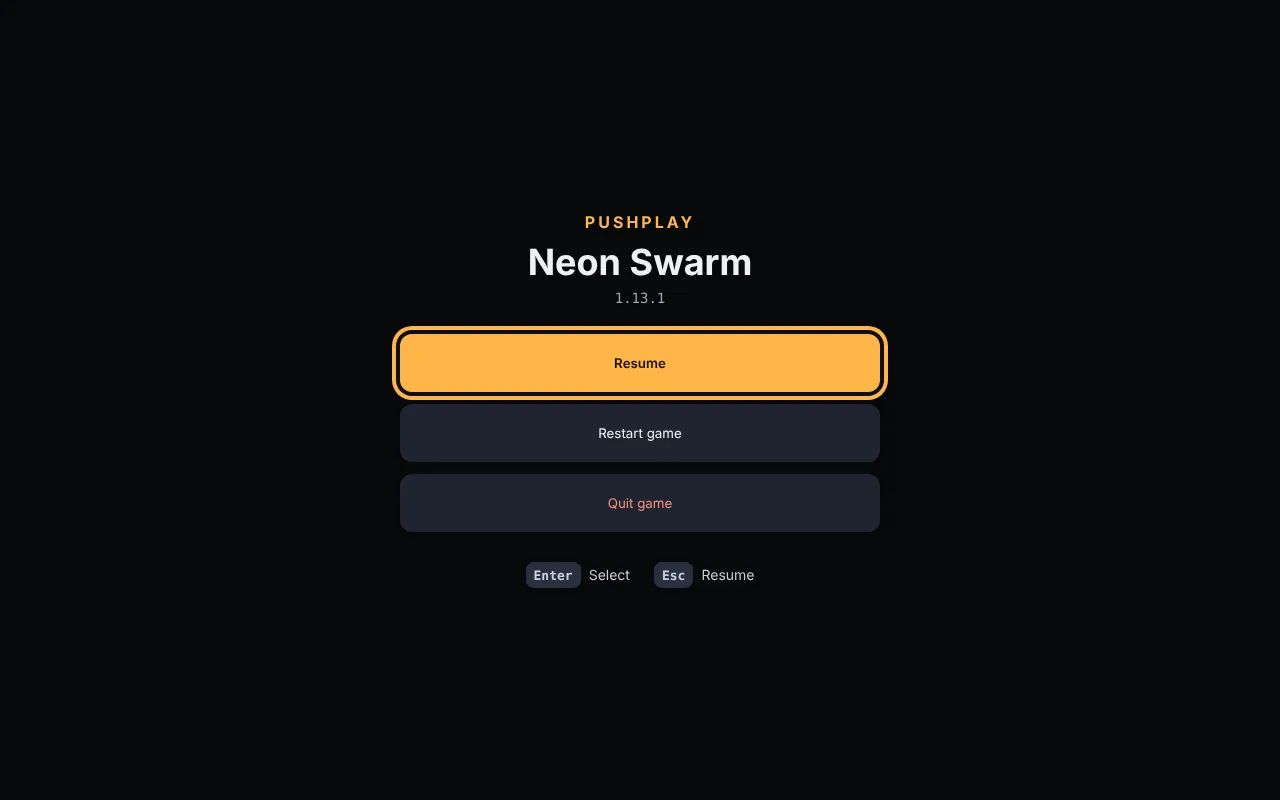
Add games from anywhere
Open Add game from the library. Every option works with a controller. Only your own and private GitHub repos need you to sign in, and that happens on your phone.
Start here: no account needed
Free starter games
Arcade Sampler, a cabinet of twelve tiny games from a synthwave racer to mini golf, and Motion Lab, where your phone is the controller. On first launch, choose Free starter games. Already have games? Add them any time:
Go to Add game → Paste repo URL.
Enter this, then choose Watch repo:
Visual-Zone-Development/pushplay-gamesThey install on their own, and so does every game added to them later.
Any game on the web
Lots of games live on a website: the browser games people share on X, like breakroombash.com and pokebonk.com, jam entries, your own. If it plays in a browser, it plays in PushPlay, full screen and with a controller.
Go to Add game → Game website.
Type the address.
pokebonk.comis enough.
More about game websites, including how to set the artwork for your own.
On a phone or tablet
The PushPlay app (coming soon to iPhone, iPad and Android) works the same way for your own games: Library → Add game → Connect GitHub, pick the repo, and its game is in your Library. A public repo can be added by its address with no sign-in. A phone plays web builds, so a game with only a Windows or Linux build shows up with a note saying so. Its Library also starts with Start with these, and Discover lists every game that plays on the device in your hand. Websites, zips and folders are added on a Steam Deck or PC. Get the app.
From GitHub
Watch a repo, and PushPlay installs its games and every update after that. It checks when it starts and every two minutes, never during play. Public repos work without signing in; private ones need it.
Sign in with your phone
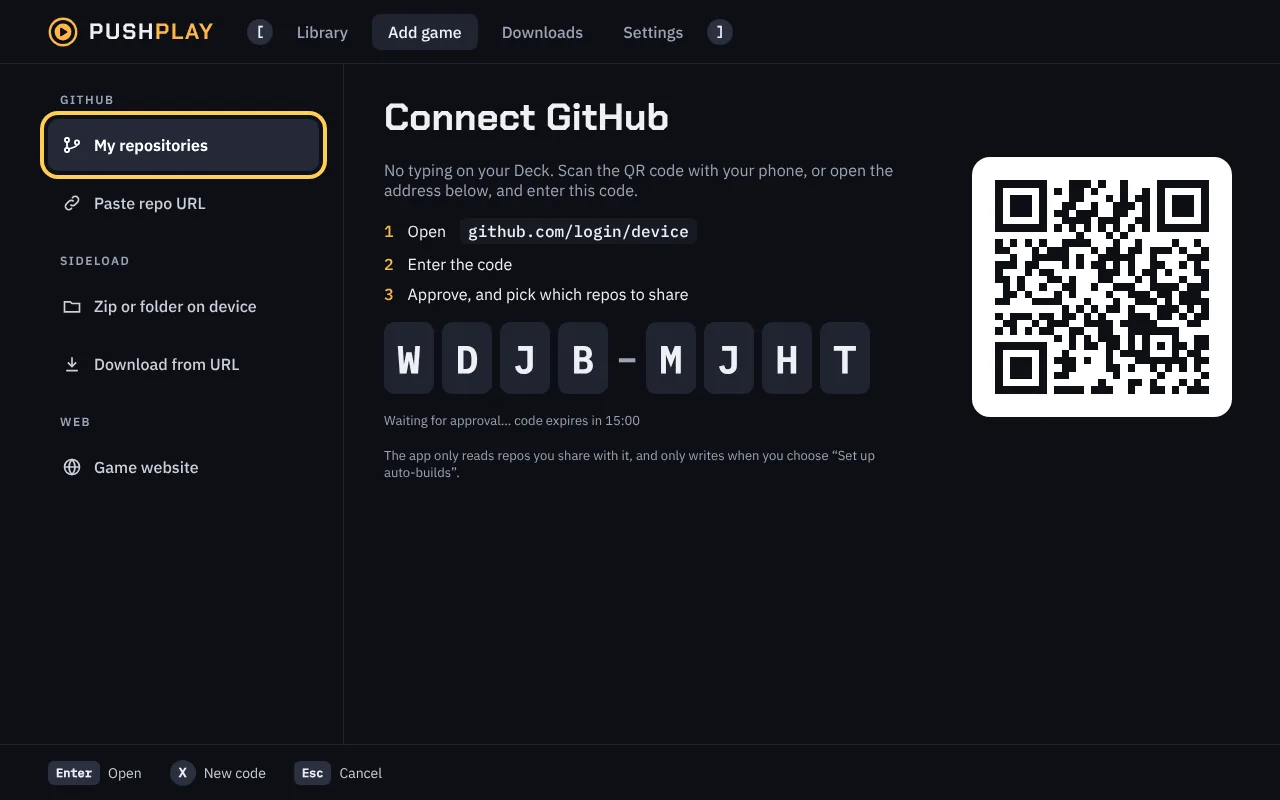
Go to Add game → Connect GitHub (it is My repositories once you are signed in). A short code and a QR code appear.
Scan the QR code, or open github.com/login/device on any phone or computer, and enter the code.
Approve PushPlay, then choose which repos to share with it: all of them, or just the ones with games. You can change this later in GitHub’s settings.
The sign-in is kept encrypted by your system’s keychain. Code expired? Press X for a new one.
Pick repos to watch
Once you’re signed in, My repositories lists the repos you shared. Press A to watch one, Y to stop watching, X to refresh. Each repo shows a badge:
Or paste a link
Add game → Paste repo URL takes any of these, so a public repo works without signing in:
owner/repo
https://github.com/owner/repo
[email protected]:owner/repo.git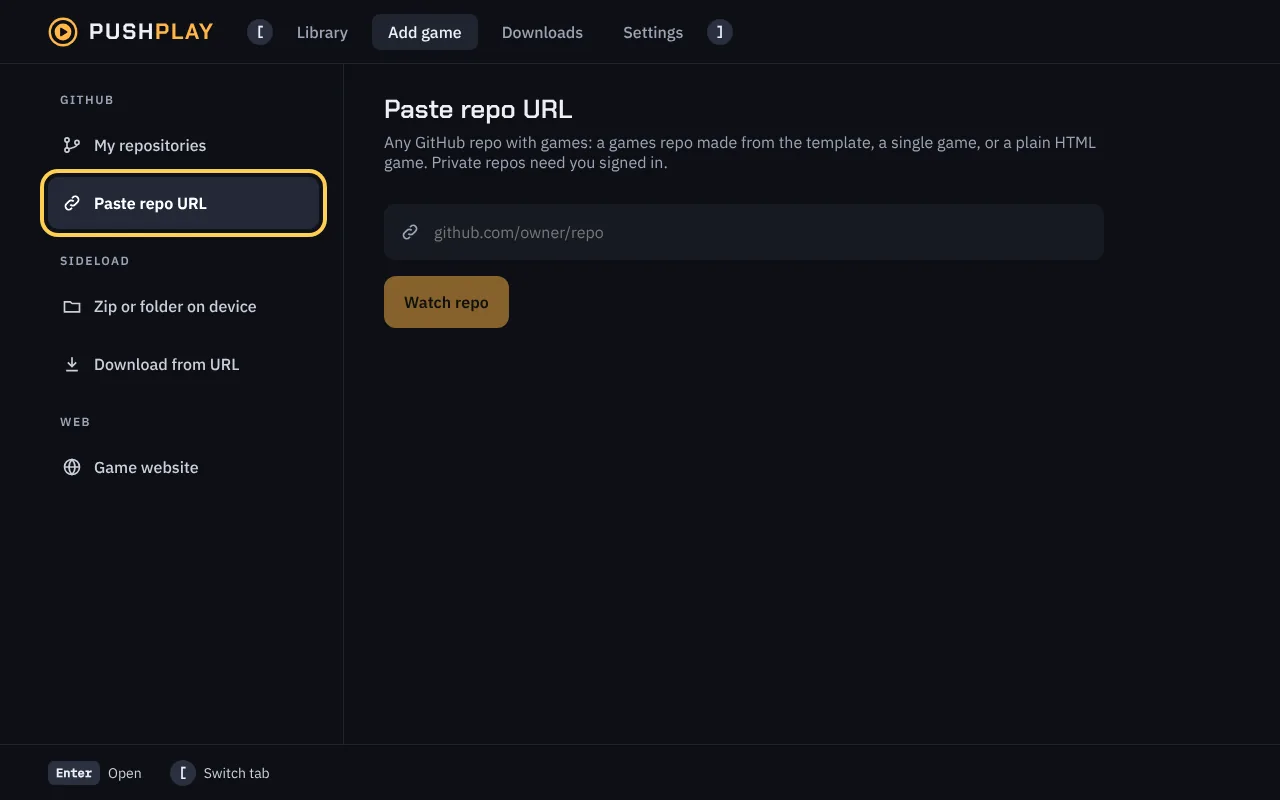
What makes a repo installable
PushPlay reads pushplay.json at the top of the repo first: it says what the game is called and how it is described. Without one, it goes by the repo’s name and description. The game’s files then come from the first of these it finds.
pushplay-latest, made by the one workflow file a repo can add. Each version was played to catch problems, and one repo can hold many games."release" in pushplay.json names them; otherwise names like Game-Windows.zip, Game-Linux.zip or a single Game.zip are read. The newest release that has one is used. Each device installs its own build, or the web one. A game with no build for your device still shows, greyed out. How names are read.index.html at the root or in dist/, docs/ or build/, played from the latest commit.pushplay.json. Merge it, and each version is checked and published. Any watched repo can have this, from its row or the game’s page. That pull request is the only thing PushPlay ever writes to GitHub.Downloads are checked against their SHA-256 before installing. Stop watching a repo and the games you installed stay; ones you never installed go away. Turn off Settings → Install new games and updates automatically to approve each one yourself. Making the repo? See every way to start, Bring your own game or the worked examples.
From a zip, folder or link
For games that aren’t on GitHub: an itch.io download, a build a friend sent you, a folder on an SD card.
Zip or folder on the device
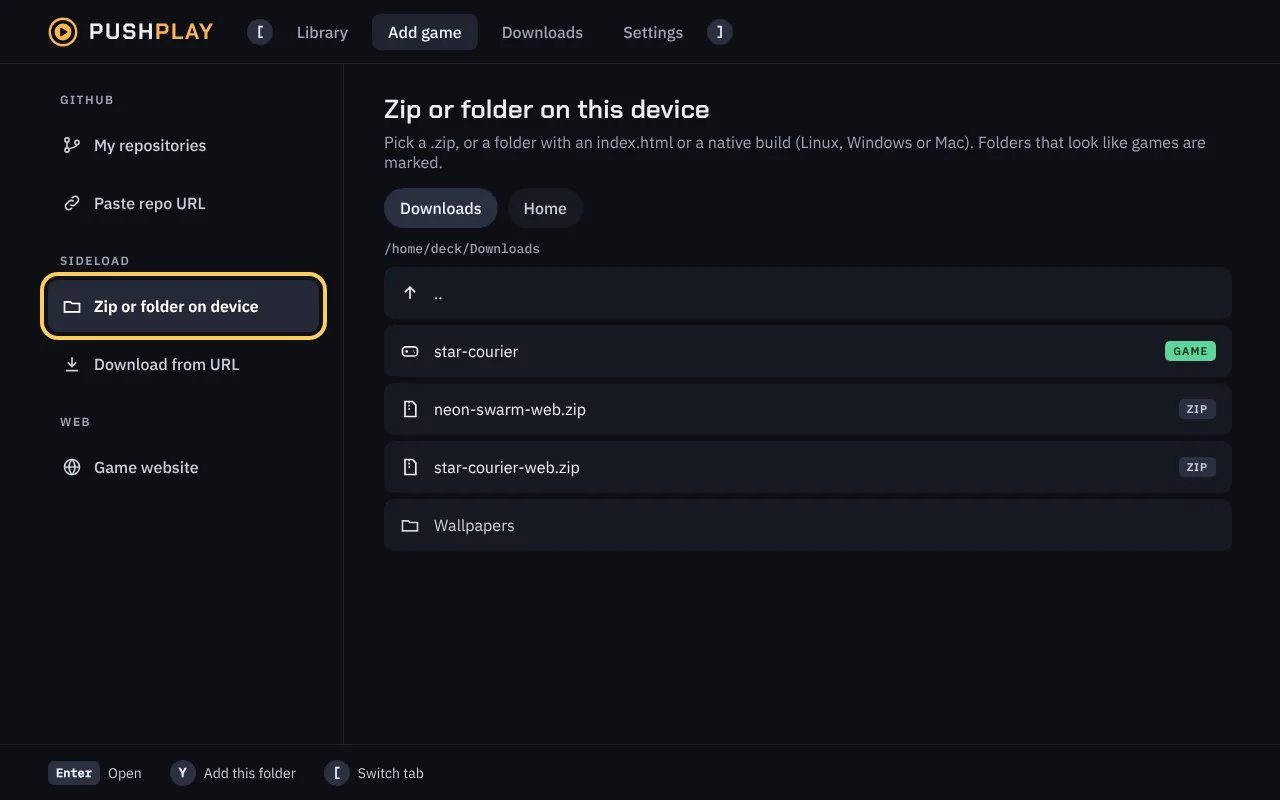
Go to Add game → Zip or folder on device.
Pick a place along the top: Downloads, Home, or an SD card or USB drive. Folders that look like a game are marked GAME, and zips ZIP.
Press A on a zip or game folder to install it, or to open a folder. Press Y to add the highlighted folder as it is.
Getting files onto a Steam Deck: download them in Desktop Mode, or copy them to an SD card from another computer.
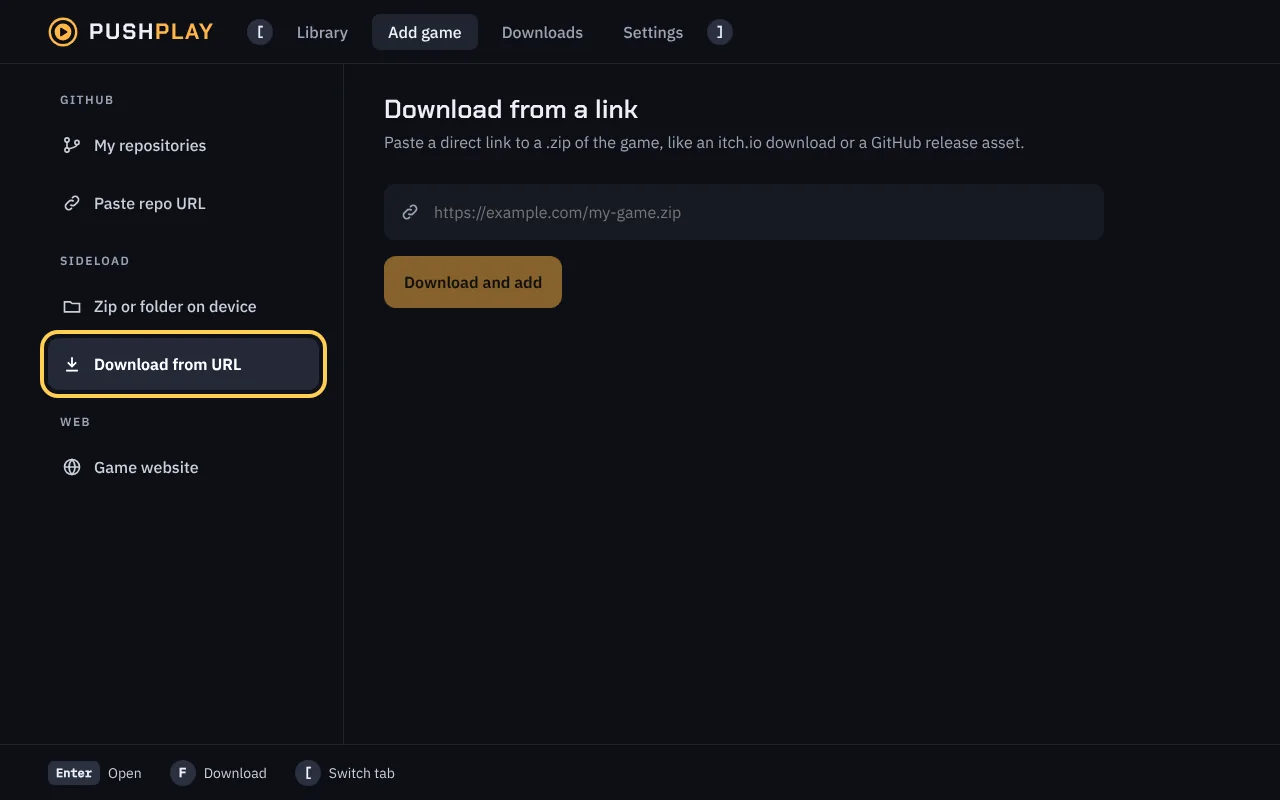
Download from a link
Add game → Download from URL takes a direct link to a .zip: an itch.io download, a GitHub release asset, anything that downloads a zip. If the link is a web page rather than a file, use Website instead.
What counts as a game
A zip with a single folder inside is unwrapped first. With a pushplay.json, PushPlay does what it says (see the manifest). Without one, it looks for:
index.html at the top, or in dist/, build/, docs/ or web/.x86_64 file (Godot, Unity), an .AppImage, or another Linux program.exe (installers and uninstallers are skipped).appAdding the same game again updates it, and the previous build is kept: its page has Roll back if the new one misbehaves.
From a website
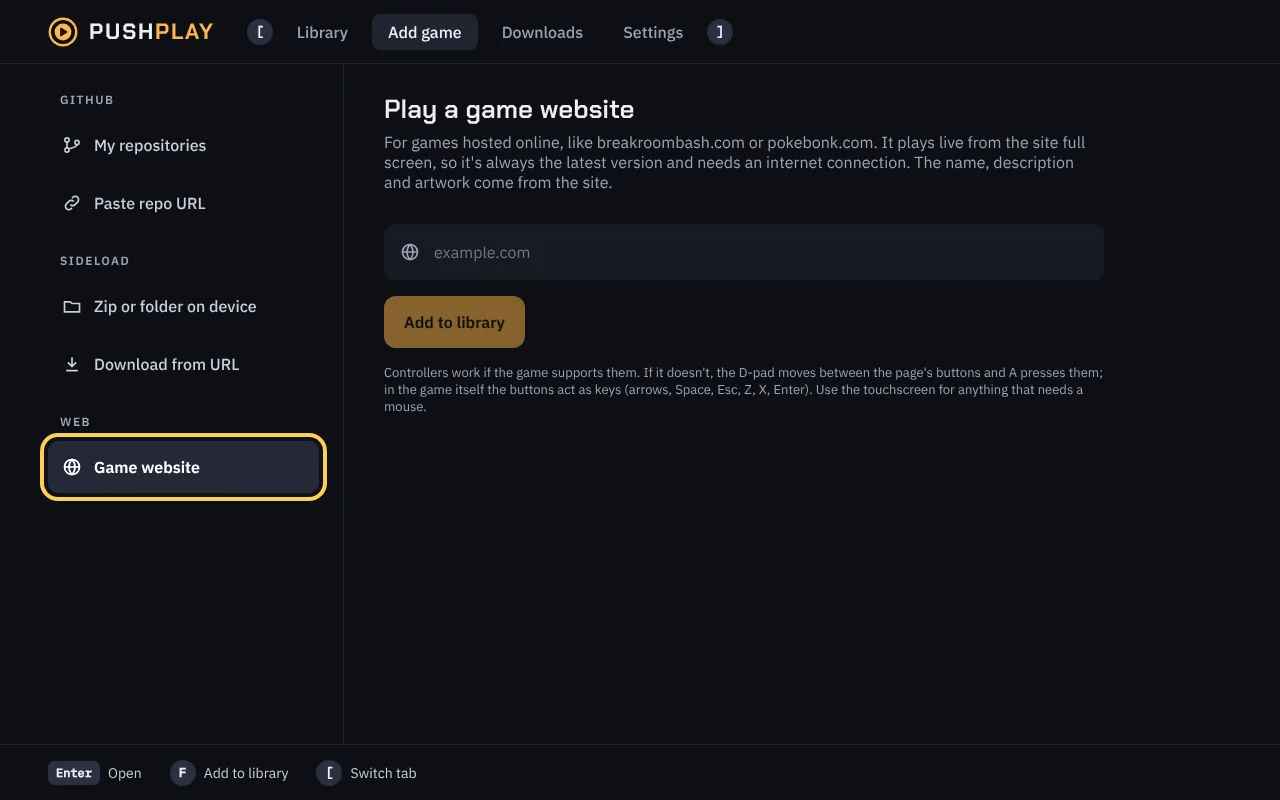
Go to Add game → Game website.
Enter the address.
example.comis enough.PushPlay opens the page, takes its name, description and picture, and adds it to your library.
Website games play live, so they need an internet connection, and they’re always the site’s newest version. Games without controller support still work: the d-pad moves between the page’s buttons and A presses them, and in game the buttons act as arrow keys, Space, Esc, Z, X and Enter.
Run a game site? Choose how it looks
Put a pushplay.json next to your page (at /pushplay.json for a site’s home page) to set the name, description and artwork. Every field is optional, and paths are relative to the file:
{
  "name": "Paper Panic",
  "description": "Defend the breakroom from a storm of paper airplanes.",
  "art": { "cover": "art/cover.png", "hero": "art/hero.png" },
  "controls": "gamepad",
  "players": "1-2",
  "tags": ["arcade", "co-op"]
}
Without one, PushPlay uses the page’s og: and twitter: tags and its title, then a screenshot of the game. Covers are 720×500 and banners 1920×450.
Playing
Every screen works with a controller, a keyboard or a mouse, and the hints along the bottom switch to match whichever you’re using. With a mouse, click anything, including those hints; the mouse’s back button goes back.